
Can't be turned on
· Check the power connection.
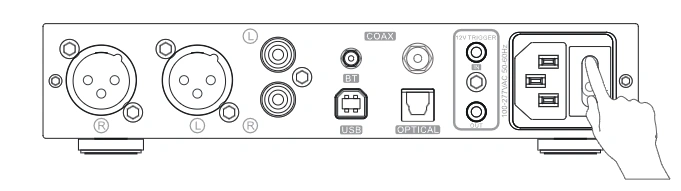
· Check if the rear panel power switch is in the ON position.
· Try with another power cable.
· Try with another power outlet.
· Try unplugging and reconnecting the power cable, then reflash the latest firmware.
No sound
· The device did not power on. Check the power supply.
· Check that the proper input source is selected.
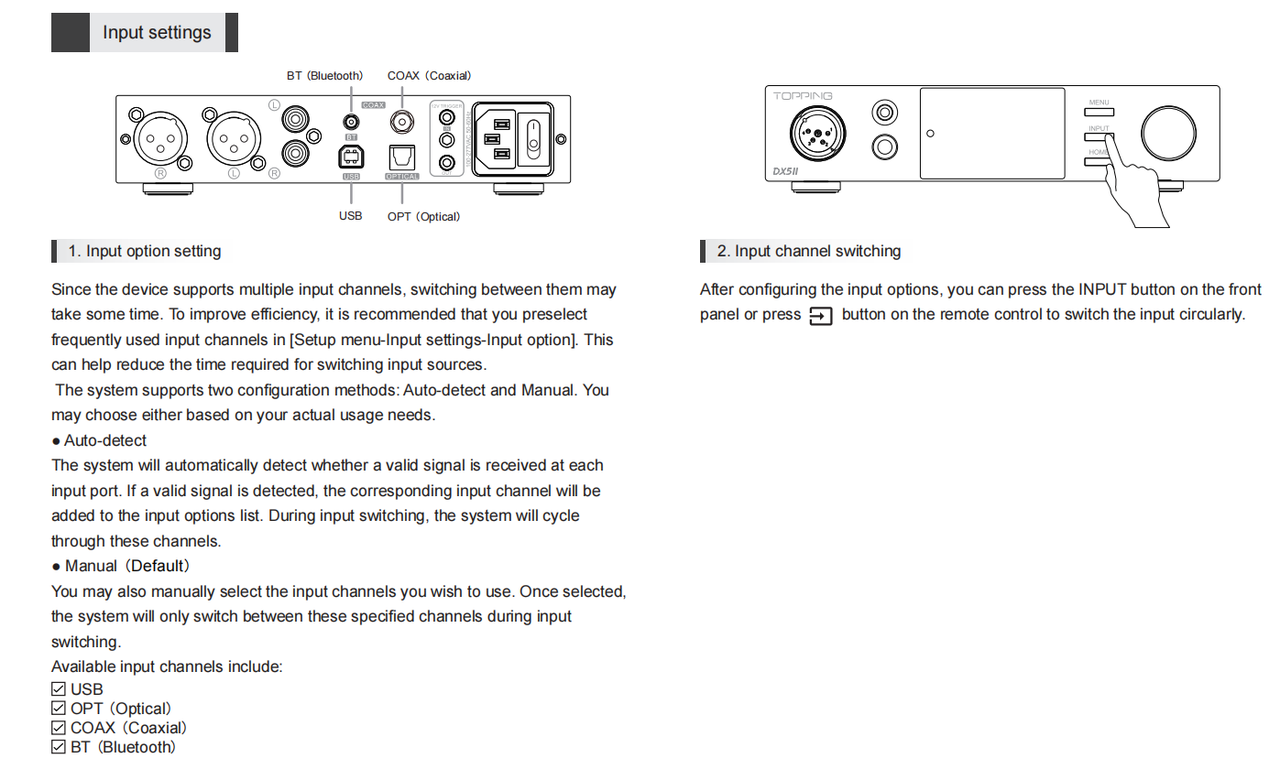
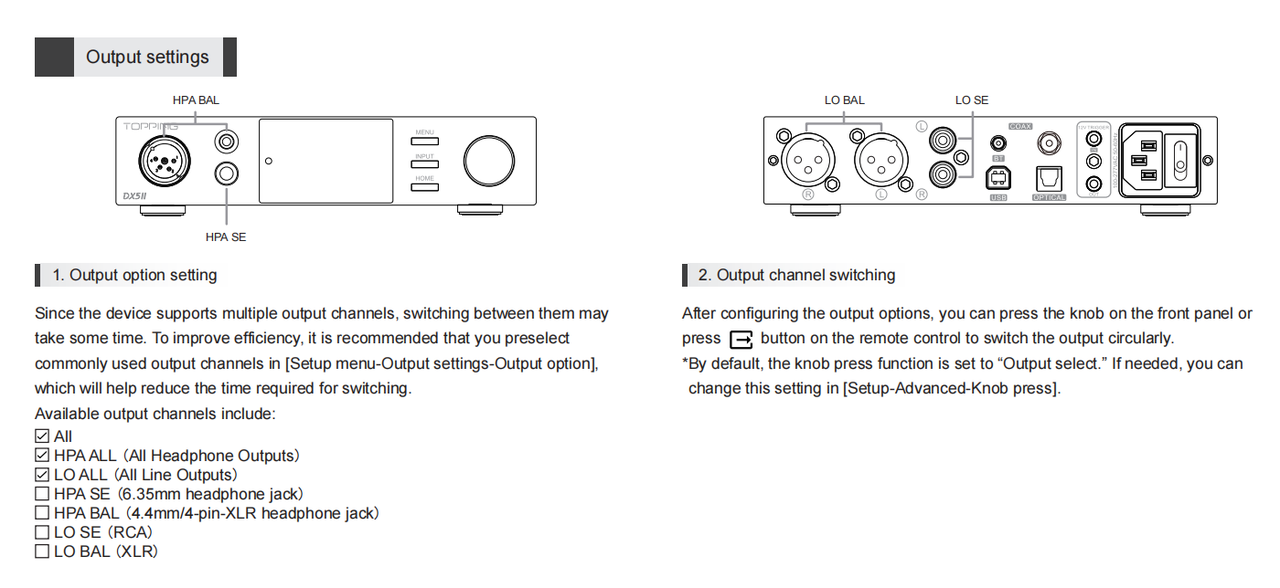
· Check the output setting.
· Check the connections for all devices.
· Insert connection cables all the way in.
· Check the volume of all devices and whether they are muted.
· Try disabling the PEQ function.
a, If the PEQ function is enabled and high-sample-rate muting is also active, sampling rates above 192kHz may be muted.
b, The PEQ gain settings might be too low, especially the pre-gain.
· Bluethooth IN: Too low volume on phone. Please adjust volume.
· USB IN:
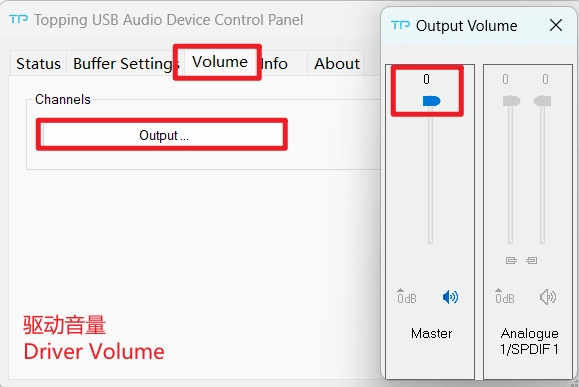
a, Too low volume on PC. Please check and adjust the computer system volume, music player volume and driver volume.
b, Select the default output device of your music player or computer as this unit.
Noisy playback
· Do not use balanced-to-SE adapters/cables. Examples: 4.4->3.5/4.4->6.35/4-pin XLR->3.5/4-pin XLR->6.35
· Make sure the plug is fully inserted. A loose connection may cause issues or trigger protection.
· If the cable currently in use is not the original headphone cable, please replace it with the original cable and test again to rule out any issue with the cable itself.
· Try with other songs.
· The specifications of songs are not supported by this unit.
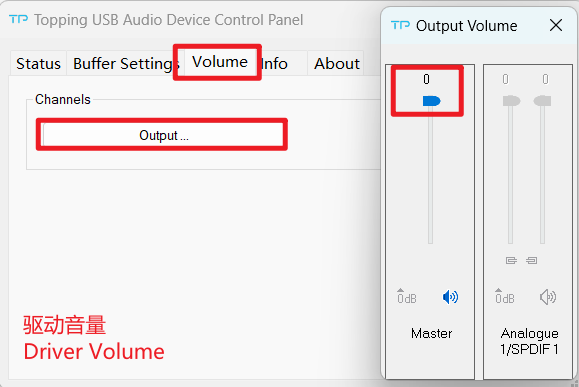
· If the noise appears only when playing DSD files, please check and adjust the computer system volume, music player volume and driver volume to the maximum.
· If you experience distortion after enabling the PEQ function, it may be due to the preamp gain being set too high, causing signal overload. Please try gradually reducing the preamp gain until the distortion disappears completely.
· Check to see if the problem is with the source, downstream equipment and cables.
· If the noise disappears after unplugging the USB cable, it may be interference from the source. You could try to add a USB isolation between this unit and the source.
One channel with noise/no output
· Do not use balanced-to-SE adapters/cables. Examples: 4.4->3.5/4.4->6.35/4-pin XLR->3.5/4-pin XLR->6.35
· Make sure the plug is fully inserted. A loose connection may cause issues or trigger protection.
· If the cable currently in use is not the original headphone cable, please replace it with the original cable and test again to rule out any issue with the cable itself.
· Check to see if the problem is with the source, downstream equipment and cables. You can try swapping the left and right channel connections and try with another source.
Channel imbalance
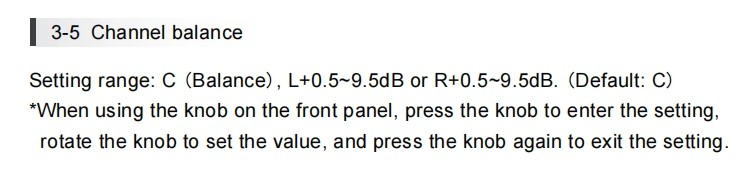
· Set to C (Balance) in [Setup Menu - Output settings - Channel balance].
· If the PEQ function is enabled, check whether it is due to different gain settings for the left and right channels.
· Check to see if the problem is with the source, downstream equipment and cables. You can try swapping the left and right channel connections and try with another source.
Abnormal sound
· Check if the PEQ or Crossfeed function is ON. [Setup menu - DSP]
· Check to see if the problem is with the source, downstream equipment and cables.
Cannot pair Bluetooth
· Enable Bluetooth function in the setup menu first. [Setup Menu - Input settings - Bluetooth]
· May be already connected to another Bluetooth device. Press and hold the Brightness button on the remote control to let this unit enter pairing mode.
· Bring the Bluetooth device near to this unit.
· Power off and restart the unit. On your phone, unpair other devices, restart Bluetooth, and then try to pair again.
Bluetooth in: the sound is cut off
· Bring the Bluetooth device near to this unit.
· Remove obstructions between the Bluetooth device and this unit.
· To prevent electromagnetic interference, locate this unit away from microwave ovens, wireless LAN devices and other Bluetooth devices.
· Reconnect the Bluetooth device.
The connected USB device does not recognize this unit
· USB cable did not connected properly. Please check or change the cable.
· Try with another USB port.
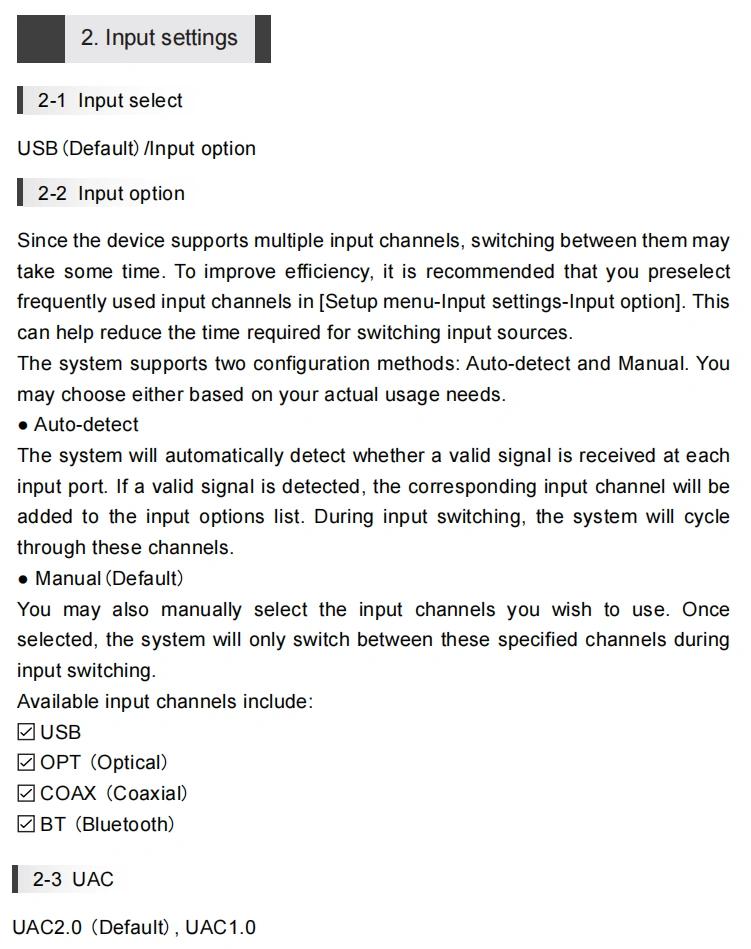
· Check if the USB setting is correct. [Setup Menu - Input settings]
· Driver problem. Try to reinstall the driver.
· May be caused by the PC. Check or try with another PC.
· Some phones require OTG function to be enabled first.
Remote control not responding
· Enable remote control function in the setup menu first. [Setup Menu - Advance - Remote]
· Try to insert two fresh AAA batteries.
· Please aim at the remote control receiver.
· Bring the remote control close to the device.
· Use your Android phone's camera to look at the transmitter at the top of the remote. If it doesn't blink when you press the remote button, the remote is defective.
· If you have more than one Topping device, check that you are using the correct remote control.
The sample rate displayed on the device does not match the music file
The choice of music player app, the setting of music player and the setting of computer/phone will all have an impact on the sampling rate.
The sampling rate displayed by this unit is the sampling rate of the input signal, and it will not change the sampling rate by itself.
If the music player can be set to exclusive mode, the audio signal will not be resampled by the computer/phone, so the sampling rate of the output signal is the sampling rate of the original file, and the sampling rate displayed by this unit is also the sampling rate of the original file.
Because some players can't be set to exclusive mode, the audio signal will be resampled by the computer/phone and then output. So this unit will always display the sampling rate set by the computer/phone.
We recommend using Audirvana player on MAC OS and Foobar on windows OS.
DAC abnormal
Disconnect other devices and reboot. If the problem still persists, your unit may be defective. Please contact the store where you purchased it.
DIR abnormal
Disconnect other devices and reboot. If the problem still persists, your unit may be defective. Please contact the store where you purchased it.
PN12V abnormal / PN8V abnormal / 15V voltage abnormal/low/high
Check the power supply. Disconnect other devices and reboot. If the problem still persists, your unit may be defective. Please contact the store where you purchased it.
FFT module abnormal
Disconnect other devices and reboot. If the problem still persists, your unit may be defective. Please contact the store where you purchased it.
HP DC abnormal
· Go to the menu and set “DC Detection Sensitivity” to “Low.” [Menu - Advanced - DC Detection Sensitivity]
· Please update the latest firmware first. After changing the song or turning down the volume, unplug and re-plug the power cable and reboot the unit. If the problem still persists after disconnecting the other devices and restarting it, the unit may be defective. Please contact the store where you purchased it.
Thermal protection
Please power off the device and let it cool for 10 minutes, then check the following three items. If the issue persists, power it off again for 10 minutes and restart it without any input or output connected. If the problem remains, the device may be faulty.
1. Make sure the plug is fully inserted. A loose connection may cause issues or trigger protection.
2. Do not use balanced-to-SE adapters/cables. Examples: 4.4->3.5/4.4->6.35/4-pin XLR->3.5/4-pin XLR->6.35
3. Do not plug/unplug headphones while playing. Pause playback before plugging/unplugging.
4. If the cable currently in use is not the original headphone cable, please replace it with the original cable and test again to rule out any issue with the cable itself.
5. Please set the volume to a normal listening level. Excessive volume or an abnormal headphone load may cause the device’s output stage to overheat and trigger thermal protection.
File size large / Firmware damage / Topping other firmware / Unknown file / Update failed / No firmware
· The firmware package downloaded from the official website must be extracted first. Follow the firmware upgrade instructions and copy the extracted .Topping firmware file to a USB drive.
· Make sure to upgrade with the correct firmware for your model. Do not use firmware intended for other products.
· Do not disconnect or interrupt the process during the upgrade.
· Try again using a different USB cable, USB port, or computer.
Why isn't Crossfeed or PEQ taking effect after being enabled?
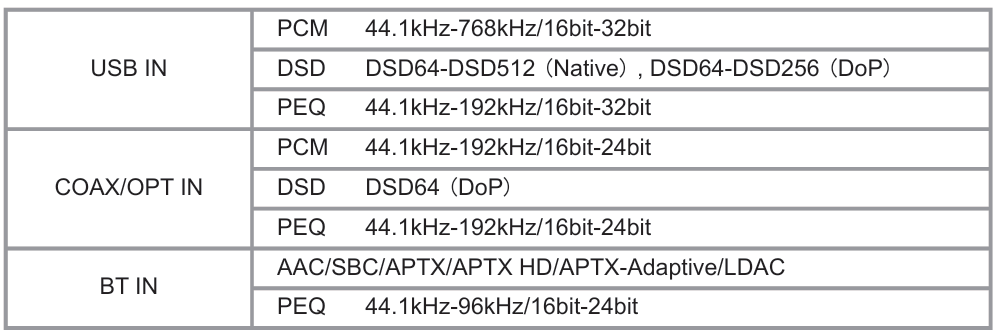
Please check whether the current audio sample rate and bit depth are within the supported range.
Crossfeed: Effective for all input and output interfaces (44.1 kHz–48 kHz / 24-bit–32-bit)
PEQ:

Mobile App Cannot Connect
· Make sure Bluetooth is enabled on the device. Installing the Bluetooth antenna is recommended.
· Keep the device and your phone within Bluetooth range.
· Turn your phone’s Bluetooth off and then back on.
· Some phones require Location Services to be enabled in order to scan for Bluetooth devices.
· Restart the app. If the issue persists, uninstall and reinstall it.
· Make sure both the app and the device firmware are updated to the latest versions.
· Press and hold the Brightness button on the device’s remote control to clear the Bluetooth pairing history. Then restart the app and try again.
· Restore the device to its factory settings, disconnect and reconnect the power, and then try again.


