
Can't be turned on
· Connect DC5V power supply to the POWER port.
· Try with another DC5V power adapter.
· Try with another power cable.
No sound
· The device did not power on. Check the power supply and press the button on the front panel to turn the unit on.
· Check that the proper input source is selected.Toggle rocker left or right to switch input channel.
· Check the output setting. Press the Line out button on the remote to switch output channel.
· Check the connections for all devices.
· Insert connection cables all the way in.
· Check the volume of all devices and whether they are muted.
* Bluethooth IN: Too low volume on phone. Please adjust volume.
* USB IN: 1) Too low volume on PC. Please check and adjust the computer system volume and music player volume. 2) Select the default output device of your music player or computer as this unit.
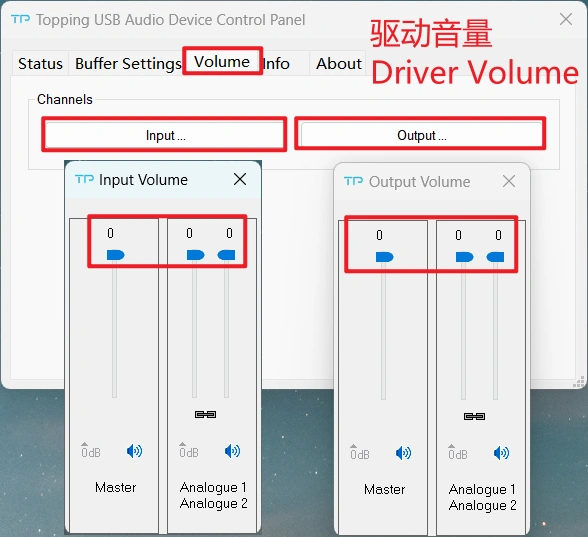
Abnormal sound (USB IN)
· Check if the PEQ function is ON. [Setup menu - 9.PEQ]
· Check to see if the problem is with the source, downstream equipment and cables.
Noisy playback
· Try with other songs.
· The specifications of songs are not supported by this unit.
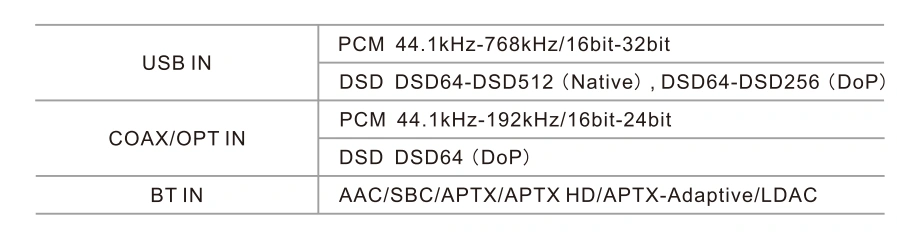
· Check to see if the problem is with the source, downstream equipment and cables.
· If the noise disappears after unplugging the USB cable, it may be interference from the source. You could try to add a USB isolation between this unit and the source.
One channel with noise/no output
· Check to see if the problem is with the source, downstream equipment and cables. You can try swapping the left and right channel connections and try with another source.
Channel imbalance
· Check to see if the problem is with the source, downstream equipment and cables. You can try swapping the left and right channel connections and try with another source.
Cannot pair the Bluetooth
· Enable Bluetooth function in the setup menu first (BT | ON).
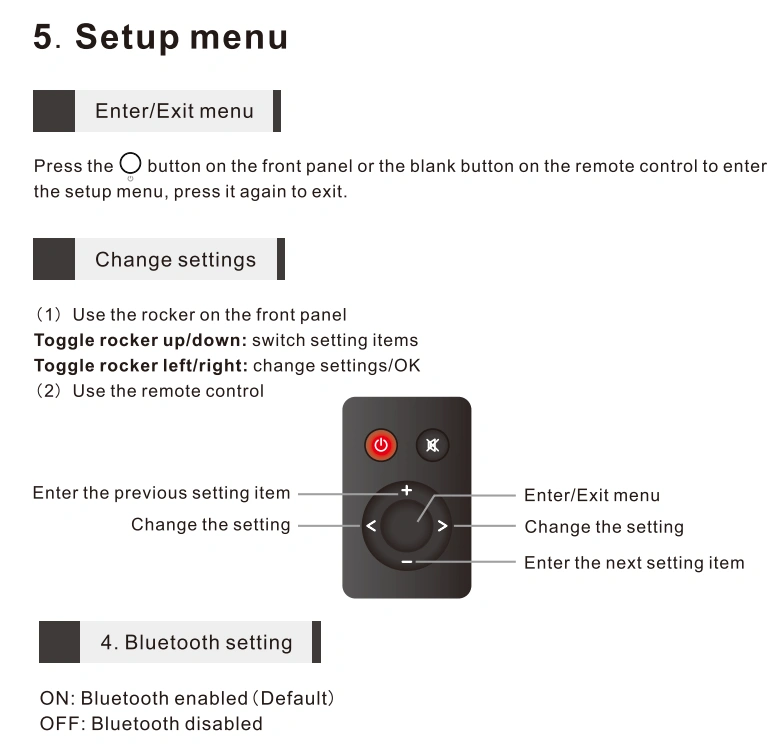
· May be already connected to another Bluetooth device. Press and hold the brightness button on the remote control to let this unit enter pairing mode.
· Bring the Bluetooth device near to this unit.
· Turn the power of the unit off and on again, and then try again.
Bluetooth in: the sound is cut off
· Bring the Bluetooth device near to this unit.
· Remove obstructions between the Bluetooth device and this unit.
· To prevent electromagnetic interference, locate this unit away from microwave ovens, wireless LAN devices and other Bluetooth devices.
· Reconnect the Bluetooth device.
The connected USB device does not recognize this unit
· USB cable did not connected properly. Please check or change the cable.
· Try with another USB port.
· Driver problem. Try to reinstall the driver.
· May be caused by the PC. Check or try with another PC.
· Some phones require OTG function to be enabled first.
How to pair the Bluetooth remote
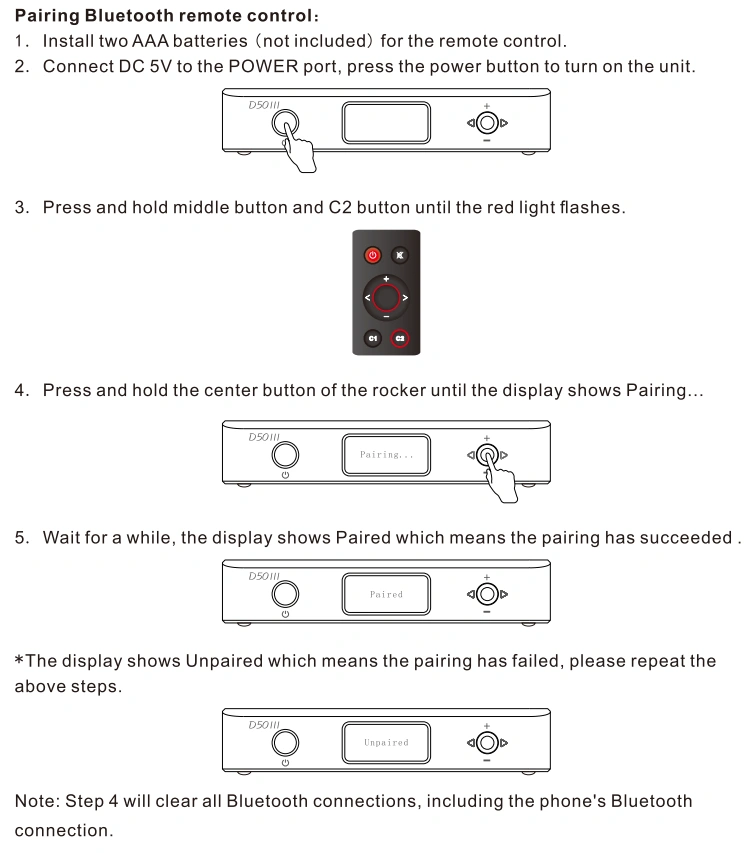
Remote control not responding
· Try to insert two fresh AAA batteries.
· Bring the remote control close to the device and install the Bluetooth antenna.
· Try to pair the Bluetooth of the mobile phone and the remote control, if it can be paired and press the up/down button can work, the remote is fine. Otherwise, the remote is faulty.
· If you have more than one Topping device, check that you are using the correct remote control.
The sample rate displayed on the device does not match the music file
· The choice of music player app, the setting of music player and the setting of computer/phone will all have an impact on the sampling rate.
· The sampling rate displayed by this unit is the sampling rate of the input signal, and it will not change the sampling rate by itself.
· If the music player can be set to exclusive mode, the audio signal will not be resampled by the computer/phone, so the sampling rate of the output signal is the sampling rate of the original file, and the sampling rate displayed by this unit is also the sampling rate of the original file.
· Because some players can't be set to exclusive mode, the audio signal will be resampled by the computer/phone and then output. So this unit will always display the sampling rate set by the computer/phone.
· We recommend using Audirvana player on MAC OS and Foobar on windows OS.
DAC ERR L / DAC ERR R / DAC ERR L+R
· Disconnect other devices and reboot. If the problem still persists, your unit may be defective. Please contact the store where you purchased it.
DIR ERR
· Disconnect other devices and reboot. If the problem still persists, your unit may be defective. Please contact the store where you purchased it.
DCIN ERR / DCIN HIGH / DCIN LOW
· Power supply abnormal/too high/too low
· Connect DC5V power supply to the POWER port.
· Try with another DC5V power adapter.
PN ERR / PNH ERR / PNL ERR
· Negative and positive voltage abnormal
· Connect DC5V power supply to the POWER port.
· Try with another DC5V power adapter.
· Disconnect other devices and reboot. If the problem still persists, your unit may be defective. Please contact the store where you purchased it.
UPDATE FAIL / READ FAIL / FIRMWARE FAIL
· Please try ro re-flash the firmware.
· If the computer does not recognize the unit, try entering DFU mode by pressing and holding the left button of front panel while powering up the unit. If this does not work, try using another USB port, another USB cable or even another computer.
DFU MODE


