
Can't be turned on
· Check the power connection.
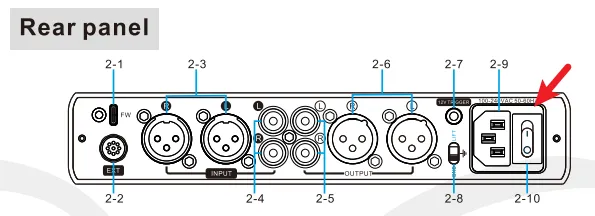
· Check if the rear panel power switch is in the ON position.
· Try with another power cable.
· Try with another power outlet.
The volume too low
· Press the B button on the remote to switch to volume curve 1.
· Turn up the volume of the source.
· Set the headphone gain to high gain by the GAIN button on remote.
· Turn up the volume of the downstream devices if you are using the Line out output of the unit.
No sound
· The device did not power on. Check the power supply.
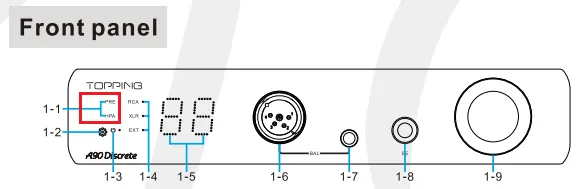
· Check that the proper input source is selected. Press the knob to switch input channel.
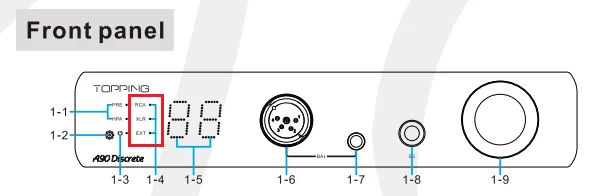
· Check the output setting. Doule-press the knob to switch output channel.
· Check the connections for all devices.
· Insert connection cables all the way in.
· Check the volume of all devices and whether they are muted.
Noisy playback
· Try with other songs.
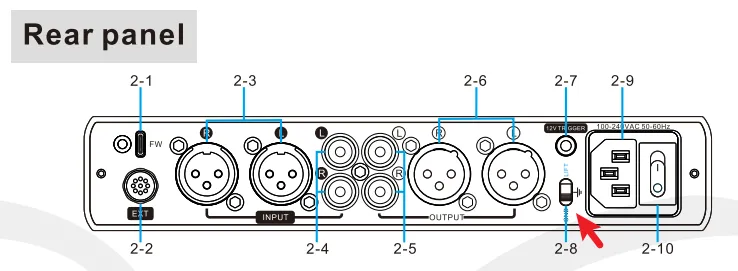
· Try to switch to "LIFT" on rear panel.
· Check to see if the problem is with the source, downstream equipment and cables.
One channel with noise/no output
· Check to see if the problem is with the source, downstream equipment and cables. You can try swapping the left and right channel connections.
Channel imbalance
· Check to see if the problem is with the source, downstream equipment and cables. You can try swapping the left and right channel connections.
Remote control not responding
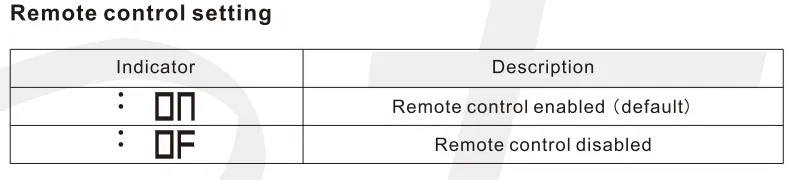
· Enable remote control function in the setup menu first.
· Try to insert two fresh AAA batteries.
· Please aim at the remote control receiver.
· Bring the remote control close to the device.
· Use your Android phone's camera to look at the transmitter at the top of the remote, if it doesn't blink when you press the remote button, the remote is defective.
· If you have more than one Topping device, check that you are using the correct remote control.
-2/-3/-4
· Negative and positive voltage abnormal. Please update the firmware first.
· May be caused by high temperature. Turn the power off, wait for the unit to cool down sufficiently, and then turn the power on again. Please place the unit in a place having good ventilation.
· Probably overloaded. Try turning down the volume and then reboot the unit.
· Too low load impedance or short-circuit load. Check the connections with the speaker.
· Disconnect other devices and reboot. If the problem still persists, your unit may be defective. Please contact the store where you purchased it.
-5
· Amplifier circuit outputs abnormal DC voltage.
· Turn down the volume of this unit, turn it off and let it cool down for 1 minute before restarting it.
· Disconnect other devices, turn this unit off and cool it down for 1 minute and then restart it. If the problem still persists, your unit may be defective. Please contact the store where you purchased it.
-7
· Please re-flash the correct firmware.
LARGE.TXT
· Please re-flash the correct firmware. Reboot the computer or try with another computer.
ERRFW.TXT
· Please re-flash the correct firmware.
UNKOWN.TXT
· Please re-flash the correct firmware.
FAILED.TXT
· Firmware upgrade failed. Please re-flash the firmware.


