
Can't be turned on
· Check the power connection.
· Check if the rear panel power switch is in the ON position.
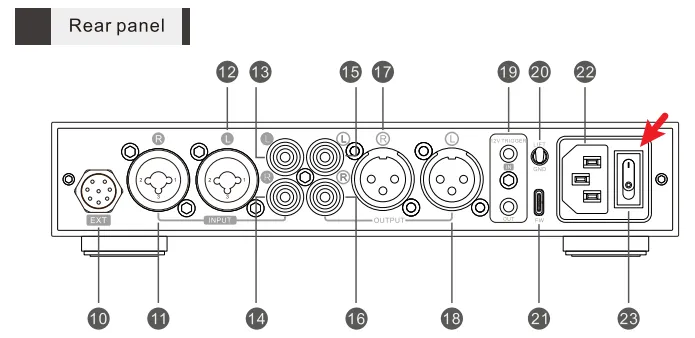
· Try with another power cable.
· Try with another power outlet.
No sound
· The device did not power on. Check the power supply.
· Check that the proper input source is selected. Press the button on front panel to switch input channel.
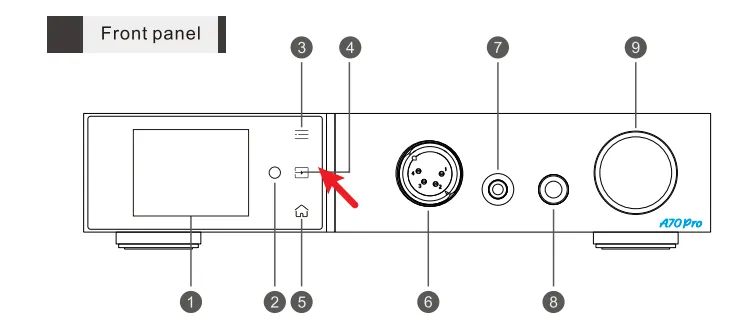
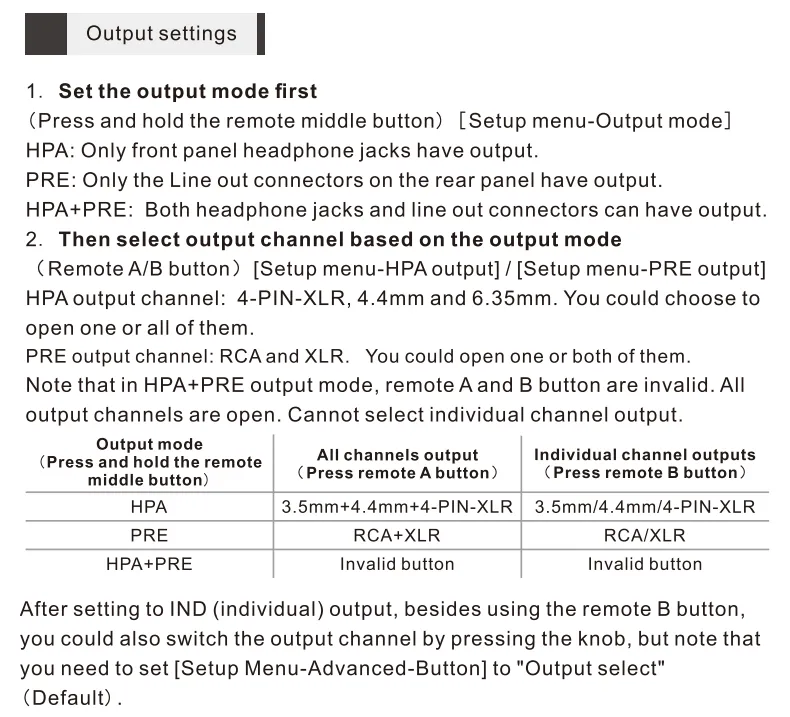
· Check the output setting.
· Check the connections for all devices.
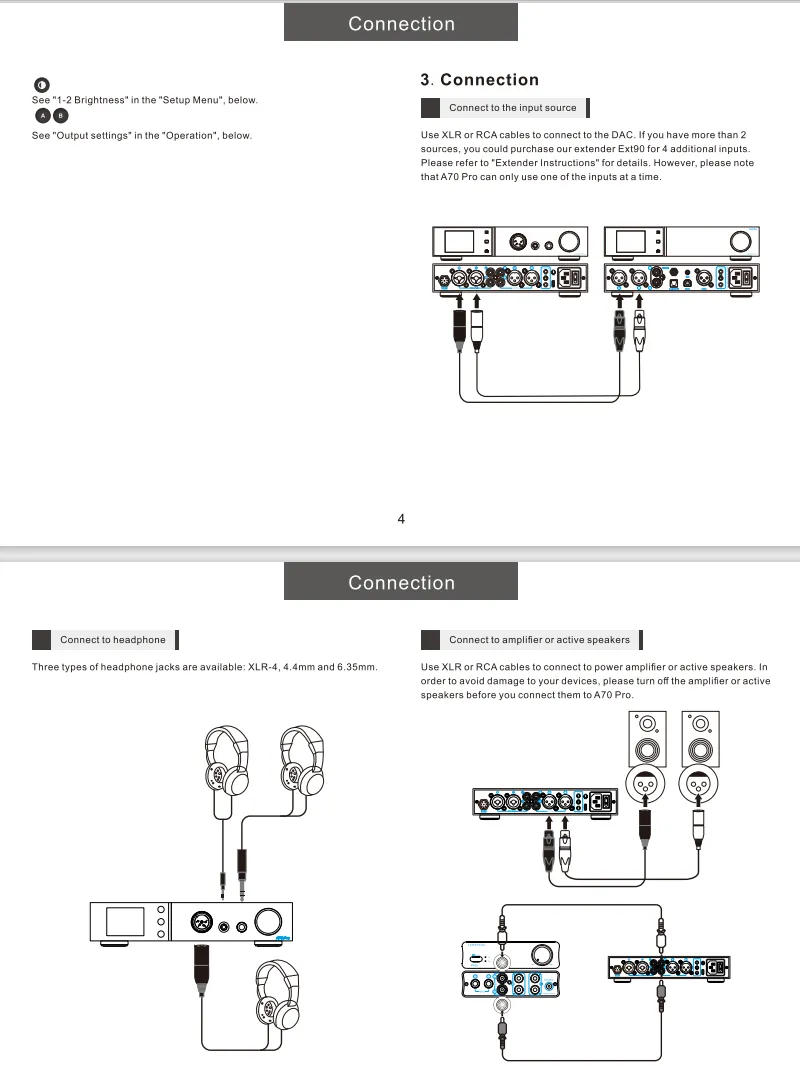
· Insert connection cables all the way in.
· Check the volume of all devices and whether they are muted.
Noisy playback
· Try with other songs.
· Try to switch to "LIFT" on rear panel.
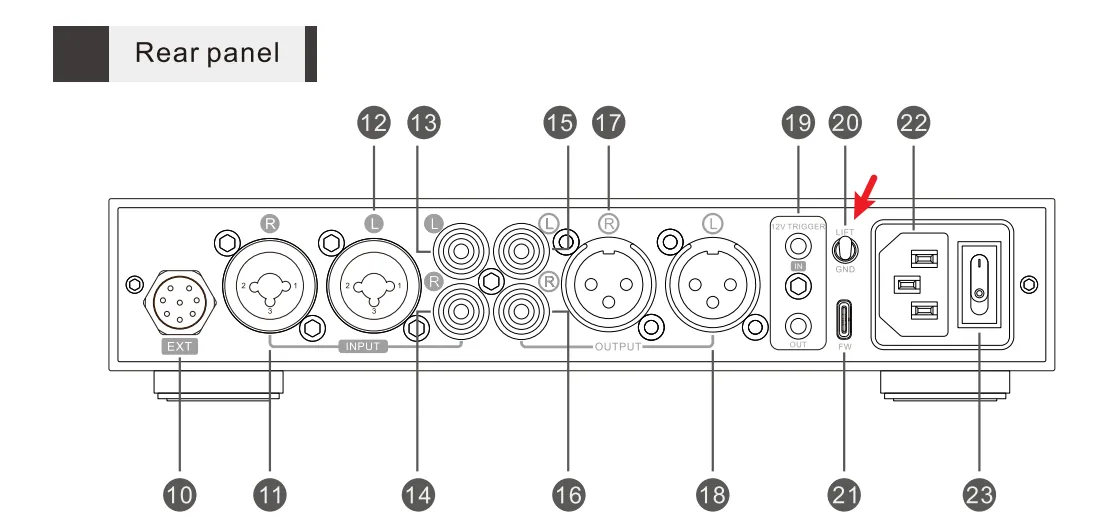
· Check to see if the problem is with the source, downstream equipment and cables.
One channel with noise/no output
Check to see if the problem is with the source, downstream equipment and cables. You can try swapping the left and right channel connections.
Channel imbalance
Check to see if the problem is with the source, downstream equipment and cables. You can try swapping the left and right channel connections.
Remote control not responding
· Enable remote control function in the setup menu first.
· Try to insert two fresh AAA batteries.
· Please aim at the remote control receiver.
· Bring the remote control close to the device.
· Use your Android phone's camera to look at the transmitter at the top of the remote, if it doesn't blink when you press the remote button, the remote is defective.
· If you have more than one Topping device, check that you are using the correct remote control.
PN Voltage ERR / P Voltage ERR
Negative and positive voltage abnormal. Disconnect other devices and reboot. If the problem still persists, your unit may be defective. Please contact the store where you purchased it.
HP DC abnormal
Amplifier circuit outputs abnormal DC voltage.
After changing the song or turning down the volume, Unplug and re-plug the power cable and reboot the unit.
Disconnect other devices and reboot. If the problem still persists, your unit may be defective. Please contact the store where you purchased it.
Firmware Error
Please re-flash the correct firmware.
Topping other firmware
Please re-flash the correct firmware.
Unknown file
Please re-flash the correct firmware.
No firmware
Unplug and re-plug the power cable, and then flash the firmware again. Be careful not to disconnect from the computer while flashing the firmware.
Update failed
Please re-flash the firmware.
File size large
Please re-flash the correct firmware. Try to reboot the computer or use another computer.
Firmware damage
Please re-flash the correct firmware.
The usage of the USB port
For firmware upgrade only.


